
YOLO-World
Describe it in words (“white horse”) and map each phrase to your classes. Or bring any Ultralytics model of your own.
Downloads its model once (asks first). Runs on a CPU.
Jelibox is a private, local workspace for building object detection and segmentation datasets. Import what you have, label it with four kinds of AI help, see what it really contains, and export it augmented, without your images ever leaving your machine. On your desktop, or from any browser on your network.
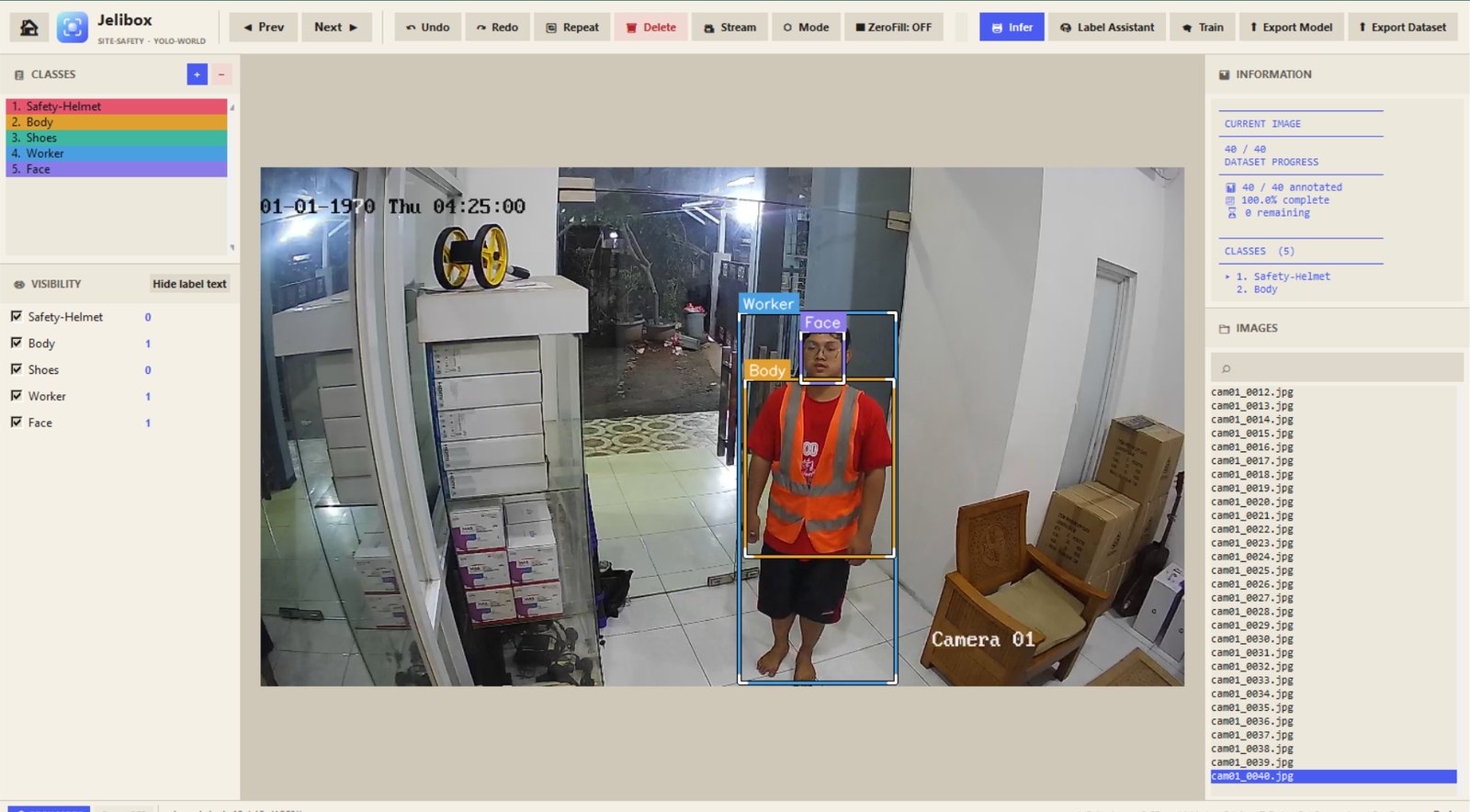
Pick a mode when Jelibox starts and change it any time. Press G for the current image, or label the whole folder in one run.
Describe it in words (“white horse”) and map each phrase to your classes. Or bring any Ultralytics model of your own.
Downloads its model once (asks first). Runs on a CPU.
NVIDIA LocateAnything-3B labels a whole folder from a list of categories, in English or Chinese.
About 7 GB once. GPU with 8 GB+ recommended.
Find people or bottles, then a small model you train gives each one your class: sleeping / working, Coca-Cola / Fanta.
Train once on images you already labeled.
No training. Annotate a few images and SAM 2 learns from each one, then finds the same objects in the next, as boxes or polygons.
One SAM 2 model, 75–224 MB, downloaded once.
Most annotation tools stop at the box. Jelibox also helps you bring data in, understand it, and ship it.
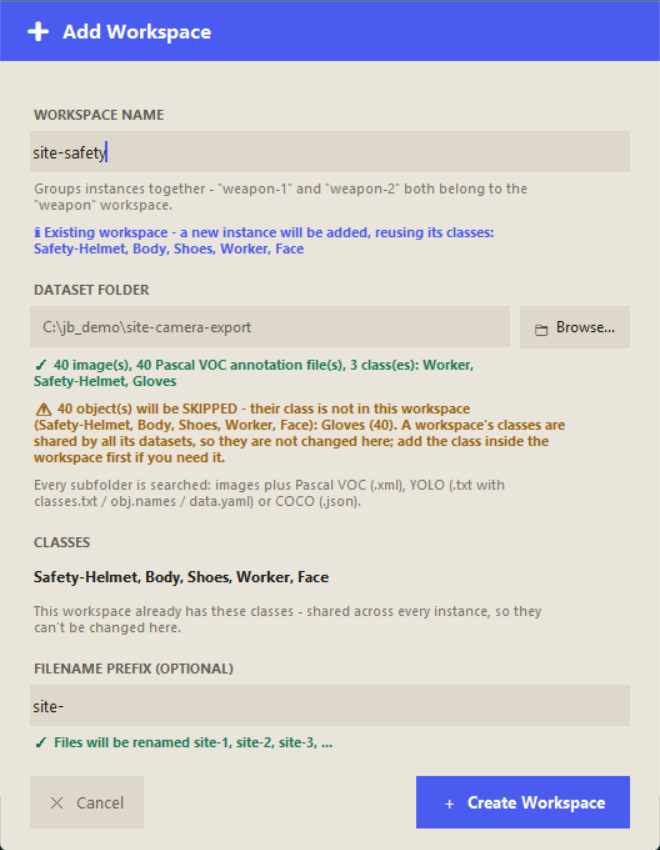
Point Add Workspace at a folder. Jelibox searches every subfolder and shows what it found before it copies a single file.
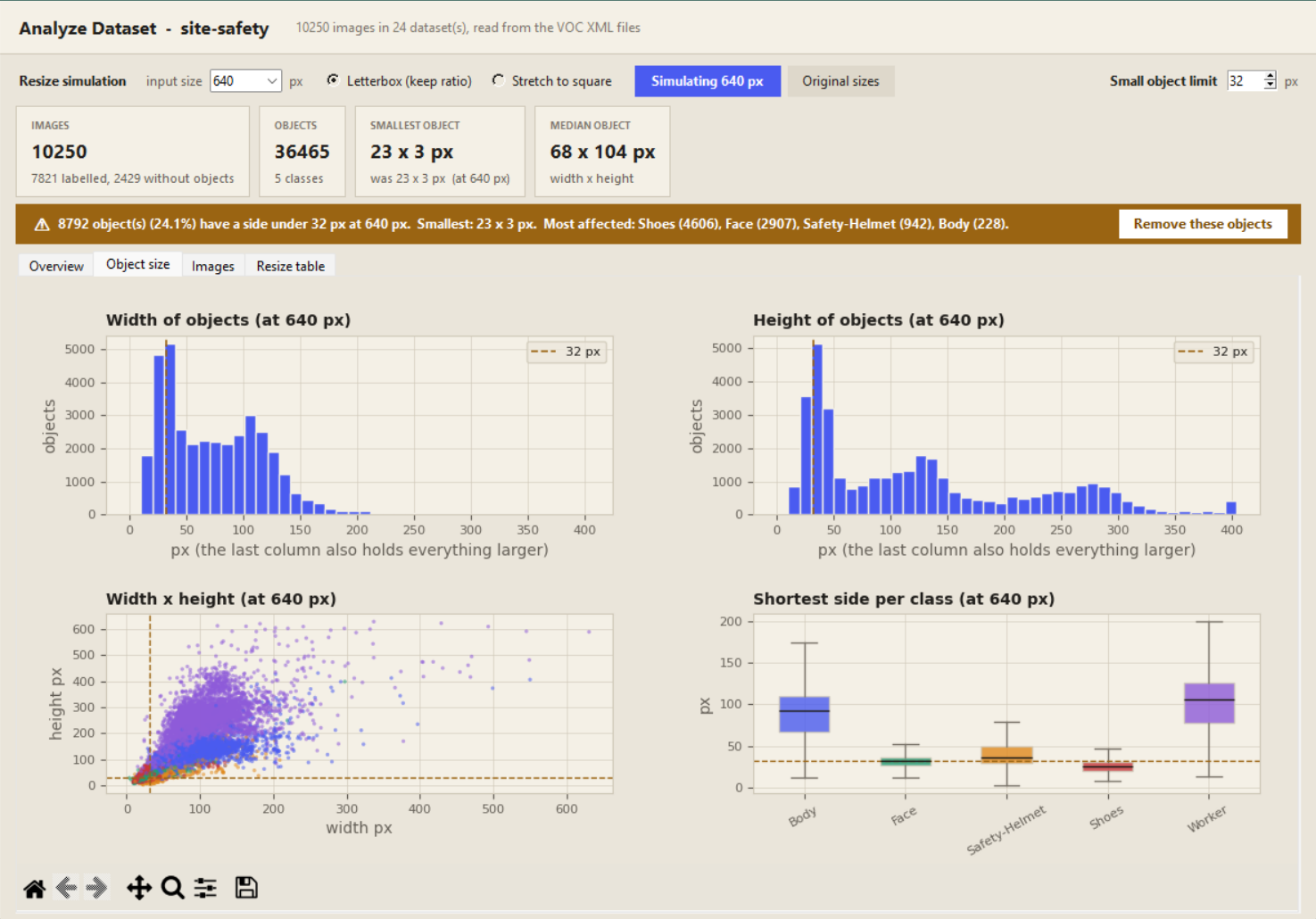
Select a workspace and open the dashboard: objects per class, size histograms, image resolutions, all in interactive charts.
YOLO, Pascal VOC or COCO with a train / valid / test split you set with a slider.
workspace-v5, -v6… folder and nothing is overwritten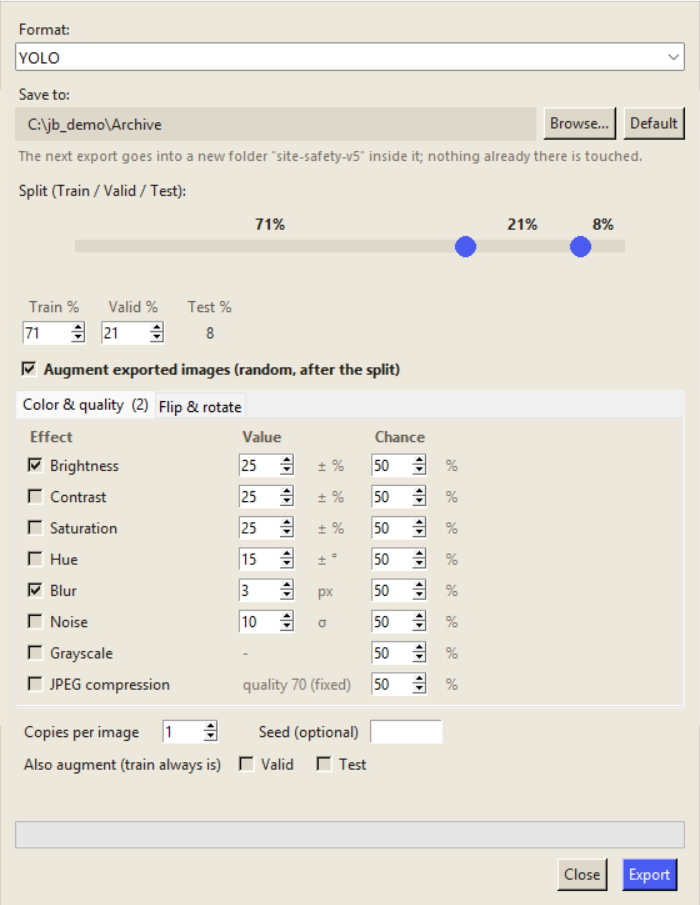
Put Jelibox on the strong computer with the GPU and open it from your laptop. Same workflow, same files, nothing leaves your network.
Open http://localhost:8420 on the server, or http://<server address>:8420 from another device. Sign in, and everything the desktop does is there.
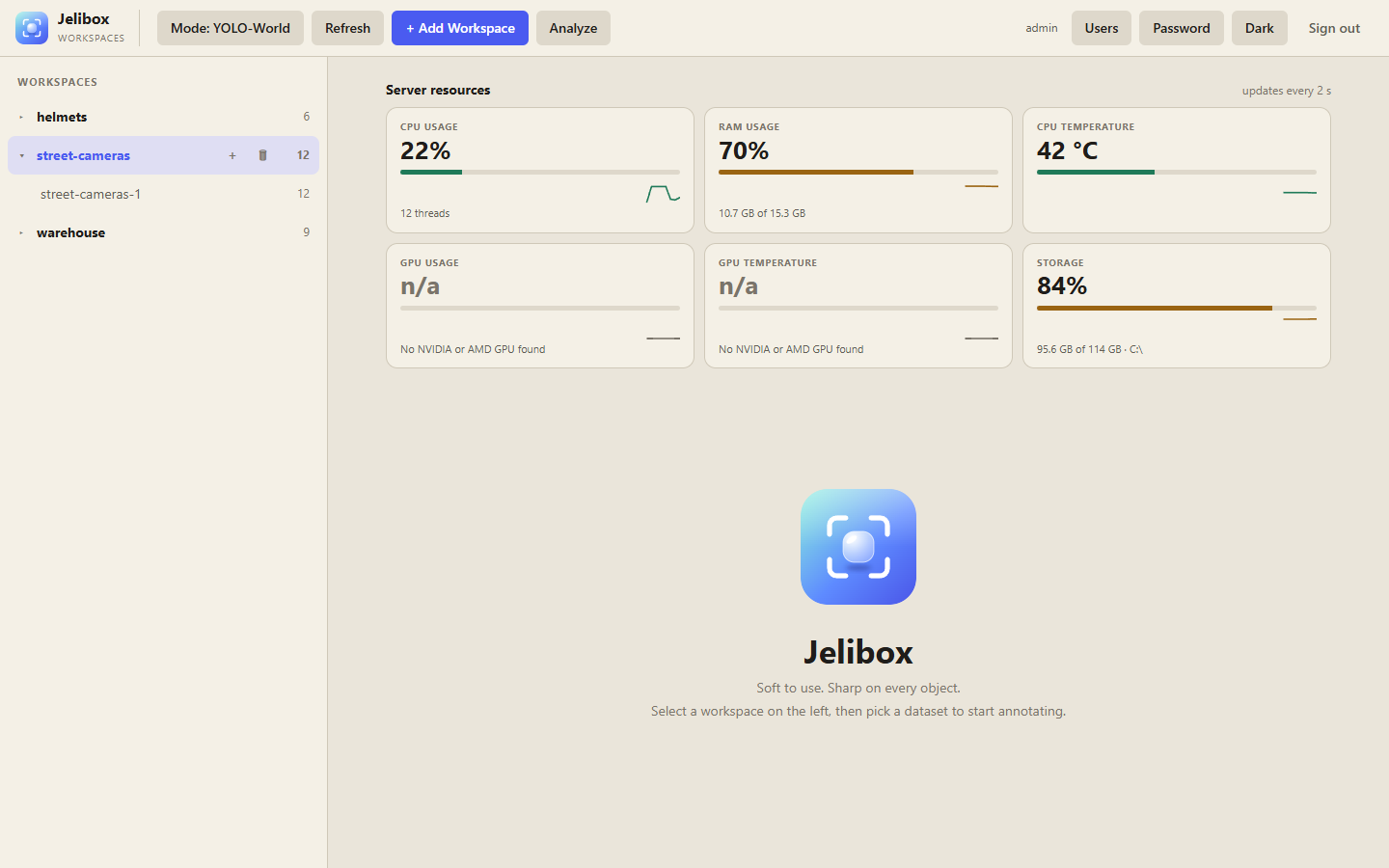
The workspace page shows the computer that runs Jelibox, refreshed every two seconds: CPU use, RAM use, CPU temperature, GPU use, GPU temperature and storage, on Windows and Ubuntu. A value a computer cannot report simply shows n/a.
The web page uses plain HTTP, so keep it on a network you trust. Choose App + web when the installer asks; App only installs just the desktop window.
Everything you need to annotate, inspect, train, and export without sending your dataset through a cloud service.
Your images, labels, and models stay on the machine you control. No account, no upload.
Edit coordinates with handles, zoom, visibility controls and class management. Undo and redo everything with Ctrl+Z / Ctrl+Y.
Go from annotations to Ultralytics training without leaving your workspace, and without duplicating your source images.
Black out sensitive regions of an image locally before the dataset leaves your hands.
Repeat the previous image’s annotations, or label the current image, or the whole dataset, with one key.
A calm cream interface that is easy on the eyes, with a dark mode when you need it. Fits a 12-inch laptop screen.
Label a few images by hand, let a model help with the rest, check the numbers, and keep correcting. Each pass makes the next one quicker.
Add a folder of images, with or without existing labels, from any common format.
Draw boxes or polygons on a handful of images with keyboard-first controls.
Press G and let YOLO-World, LocateAnything, your own model or SAM 2 label the rest.
Check class balance and object sizes, and choose a model input size that suits them.
Ship an augmented dataset in the format your pipeline expects, or train right here.
One command, no git needed. It downloads the newest release and sets everything up. Run it again later to update; your datasets and models are never touched.
Open PowerShell and paste:
irm https://raw.githubusercontent.com/Jelibox/Jelibox-client/main/install.ps1 | iex
Jelibox gets its own Python (via uv) inside its folder; yours is never touched. Windows asks for administrator permission only if the Visual C++ runtime is missing.
Open a terminal and paste:
curl -fsSL https://raw.githubusercontent.com/Jelibox/Jelibox-client/main/install.sh | bash
Jelibox gets its own Python (via uv) inside its folder; yours is never touched. It asks for your sudo password only if the OpenCV system libraries (libGL, GLib) are missing.
The installer asks what to install: App + web (the desktop app plus the web version, started for you when you sign in or boot) or App only. It asks again at every update, so you can switch.
The installer asks whether this computer has a discrete NVIDIA graphics card and installs the CUDA or the smaller CPU-only PyTorch accordingly.
Prefer to read it first? install.ps1 and install.sh are short and open source.
sudo apt install git
git clone https://github.com/Jelibox/Jelibox-client.git
chmod +x jelibox_linux_installation.bash
./jelibox_linux_installation.bash
The installer needs sudo only if the OpenCV system libraries are missing. It installs uv if needed, downloads Jelibox's private Python, creates the jelibox/ virtual environment, installs dependencies, and creates a desktop launcher.
jelibox_windows_installation.bat. Do not run it as administrator: it asks Windows for permission itself, only to install the Visual C++ runtime, and only when it is missing.Jelibox.lnk shortcut.The installer detects an NVIDIA GPU only to suggest an answer, then asks whether this computer has a discrete NVIDIA GPU and installs the matching PyTorch build. GPU detection does not guarantee that the installed PyTorch package has CUDA enabled.